Guest Journey
Build the automated, stage-by-stage message journey every guest moves through.
Written By Bram Haenraets
Last updated 2 months ago
A journey sends templates automatically at each stage of the guest's stay. Build the messages first in Templates, then add them as steps here.

Your Guest Journey is your property's automated proactive messaging, set up once and running for every guest. It's a single journey grouped into stages, and each step sends one message at the right moment in the guest journey. You build and adjust it freely; nothing reaches a guest until you publish.
Adding a Guest Journey step
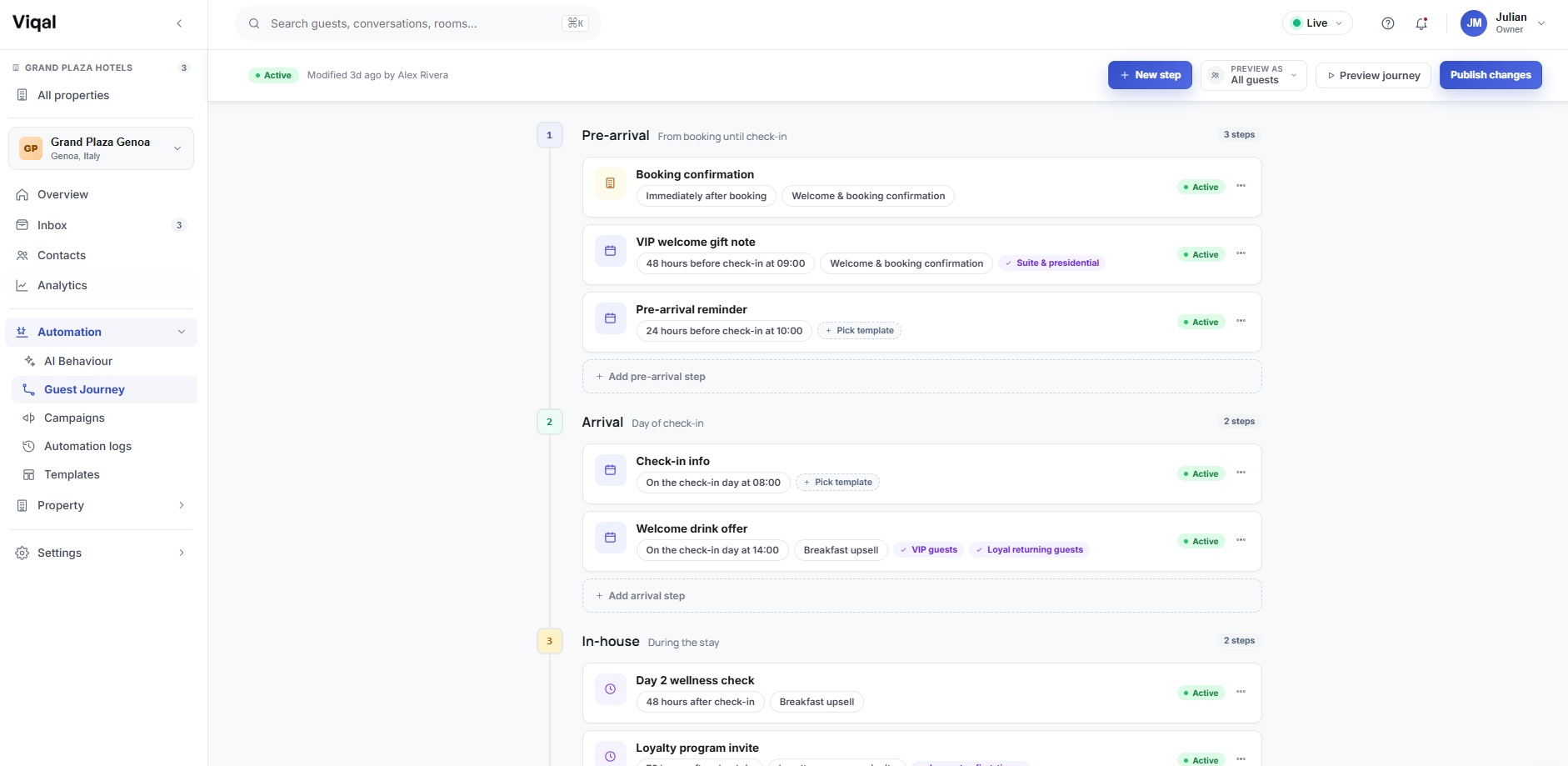
Open Guest Journey from the sidebar to see your stages, the steps in each, and how many are active. Each step has three things: when it fires (a trigger), what it sends (a template), and who it applies to (targeting).
The five stages
The journey is grouped into five fixed, ordered stages that follow the guest from booking to after they leave. You add your own steps within each.
Pre-arrival — from booking until check-in. Most hotels send a booking confirmation and a check-in reminder.
Arrival — the day of check-in. Check-in instructions, room-ready alerts, welcome messages.
In-house — during the stay. Wellness checks, upsells, housekeeping notes.
Checkout — the day of check-out. Late-checkout offers, the folio, a farewell.
Post-stay — after check-out. Thank-you messages, review requests, re-booking offers.
Building a step
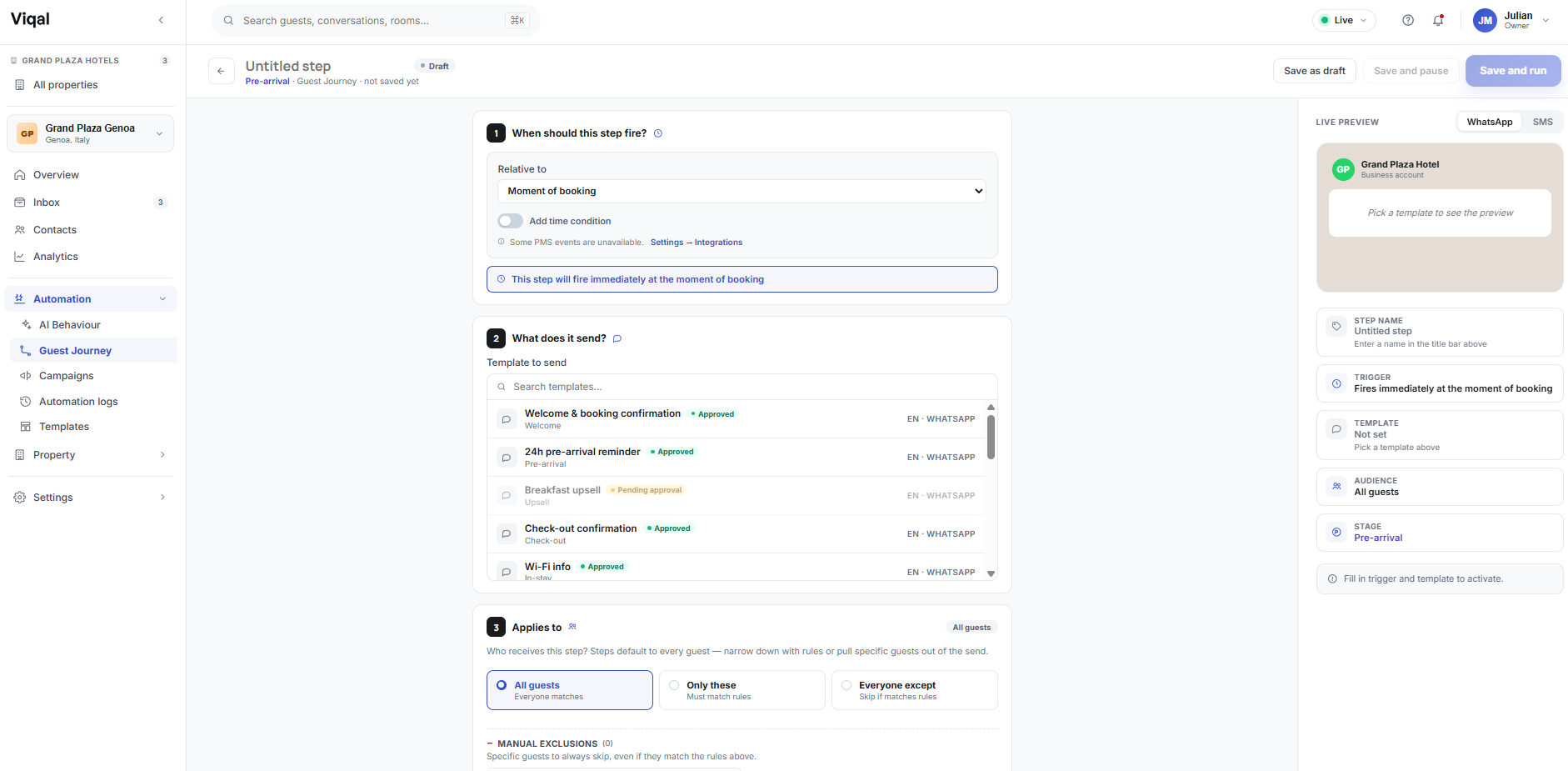
To add a step, select Add step within a stage or the New step button (or open an existing step and choose Edit step), then set its four parts:
When it fires — the trigger (see Timing below).
What it sends — pick one template, from your approved templates (pending ones show in the editor too).
Who it applies to — targeting (see below).
Which stage it belongs to.
A live preview on the right shows the message as WhatsApp or SMS. Save it as a draft, Save and pause (saved but not sending), or Save and run (active) — the save options stay disabled until you've set at least a trigger and a template.
Timing: when a step fires
Each step fires relative to a moment in the guest's stay, built from a reference point and an optional time condition.
Booking-based — the moment of booking, or when a booking is cancelled or modified.
Scheduled guest journey moments — E.g. 24 hours before expected check-in time or 2 days after the check-out date at 15:00pm.
PMS events — real events from your property system: actual check-in, actual check-out, room ready, no-show. These need a connected PMS that exposes the event.
On top of the reference point you can set a specific time of day (for example, the check-in day at 08:00) or an offset before or after the event (for example, 48 hours after check-in) — choosing the amount and unit (minutes, hours, days, weeks). As you build it, a live summary confirms exactly when the step will fire — "This step will fire 48 hours after check-in." If a PMS event isn't available on your integration, the editor flags it and links to Settings → Integrations.
Targeting who receives a step
By default a step goes to every guest in that stage. To narrow it, set targeting under Applies to:
All guests — fires for everyone.
Only these — fires only for guests who match your rules.
Everyone except — fires for everyone except guests who match.
Rules match on guest and booking attributes. Some always work; others need your PMS connected.
Party type — solo, couple, family, group
Length of stay — 1 night, 2–3, 4–7, 8+
Lead time — last-minute (0–2 days), normal (3–14), advance (15+)
Returning guest — yes / no
Room type
Booking source — direct / OTA
Rate plan
Market segment
Language
Nationality
Guest type — VIP / normal
Breakfast included — yes / no
Rules combine with AND inside a group; add another group to combine with OR. You can also add specific guests to a manual include or exclude list.
Use Preview as at the top to view the journey as a specific guest persona — steps that guest wouldn't receive are dimmed — so you can confirm your targeting before publishing.
Managing your journey
Edits — new steps, changed timing, paused steps — stay pending until you select Publish changes; until then guests see the previously published version. Each step is Active (sending), Paused (saved, not sending) or Draft (not finished). Open a step to Edit, Activate or Pause, Duplicate (the copy starts paused so you can adjust it safely), or Delete (with confirmation). Use Preview journey and Preview as to walk through it before publishing.
Was this helpful?
Still need help? Ask the team