Campaigns
Send one-off targeted broadcasts to a segment of guests, now or scheduled.
Written By Bram Haenraets
Last updated 2 months ago
A campaign sends a template as a one-off broadcast to a segment of guests. Build the message first in Templates, then choose who receives it.

Campaigns are one-off, targeted broadcasts you send to a segment of guests and/or propsects. For instance a seasonal promotion, an event invite, a one-time announcement - now or scheduled for a moment you pick. They're the counterpart to your Guest Journey: the journey is always-on and lifecycle-driven (every guest moves through it automatically), while a campaign is a single send to a group you choose. Rule of thumb: if the message should go to every guest at a certain point in their stay, it belongs in the Guest Journey; if it's a one-time message to a specific segment, it's a campaign. Find Campaigns under the Automation section in the sidebar.
Creating a campaign
Select New campaign to open the editor — four steps, with a live preview of your message on the right.
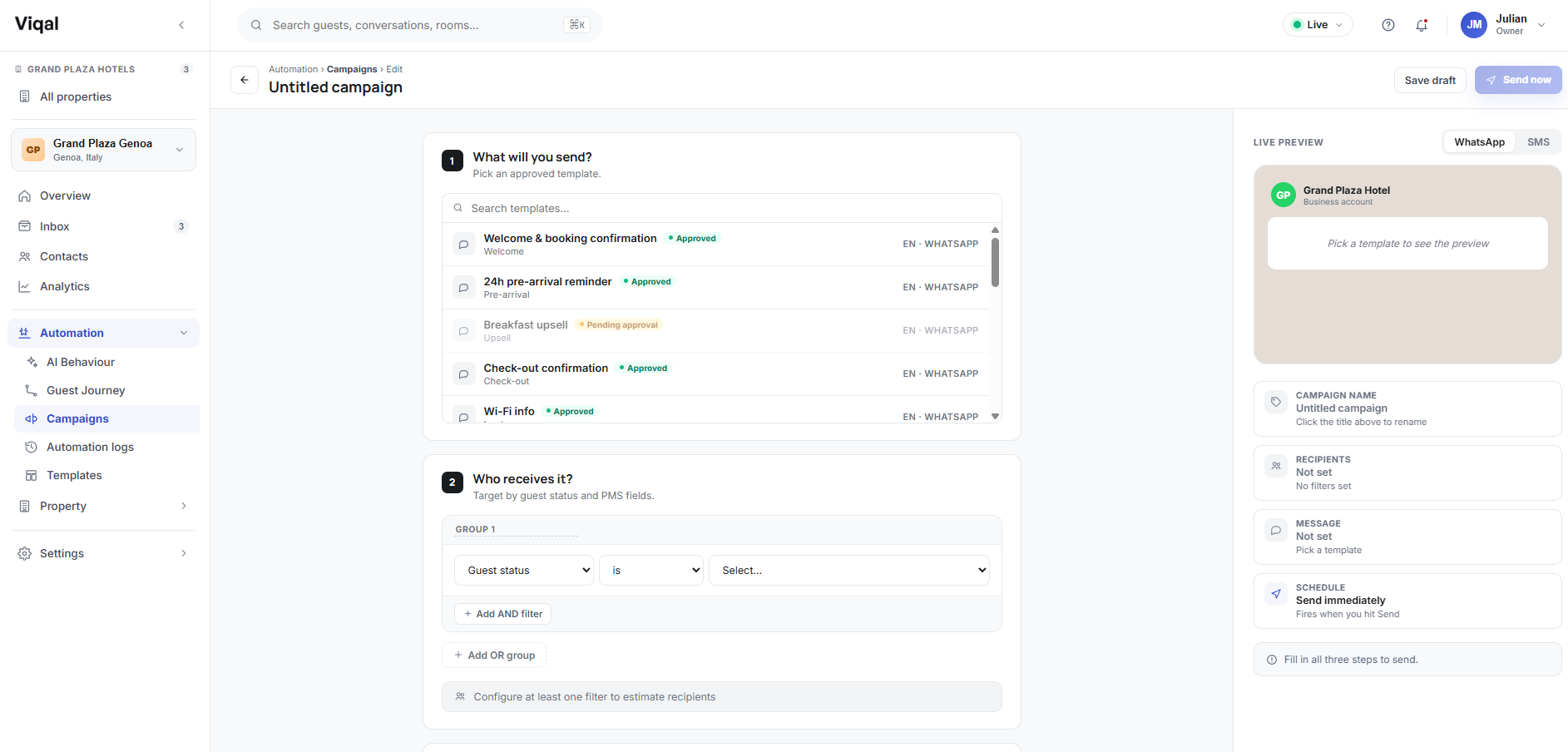
1. What will you send? Pick an approved template or flow. The preview shows it as WhatsApp or SMS, with sample values filled into any variables. A template must be approved to actually send.
2. Who receives it? Build your audience (see below). A live estimate shows roughly how many guests match as you add filters.
3. When should it send? Choose Send now, or Schedule for later with a date, time and timezone.
4. How long to track results? Set the number of days Viqal keeps refreshing the campaign's stats — how long the campaign runs and reports for.
You can Save draft at any point. The Send now / Schedule send button stays disabled until all steps are complete and at least one guest matches.
Choosing who receives it
Build your audience by filtering guests. Some filters always work; others need your PMS connected.
Party type — solo, couple, family, group
Length of stay — 1 night, 2–3, 4–7, 8+
Lead time — last-minute (0–2 days), normal (3–14), advance (15+)
Returning guest — yes / no
Room type
Booking source — direct / OTA
Rate plan
Market segment
Language
Nationality
Guest type — VIP / normal
Breakfast included — yes / no
Filters combine with AND inside a group; add another group to combine with OR. A running estimate shows how many guests match.
Your audience is a snapshot — it's the guests who match at the moment you create the campaign, not a live, ongoing segment.
Marketing consent is your responsibility. Campaigns are marketing messages, so only send them to guests who have opted in to marketing on that channel. Consent is captured by your property (typically at booking) and recorded per contact. Sending marketing to guests who haven't consented can breach WhatsApp's rules and data-protection law. This is operational guidance, not legal advice.
Scheduling and sending
In the schedule step, choose Send now (fires as soon as you confirm) or Schedule for later (pick date, time and timezone — the campaign sits in Scheduled with a countdown until then). From a scheduled campaign you can edit it, send it immediately, move it back to draft, or archive it — all before it goes out. Once a campaign starts sending, it can't be edited.
Managing campaigns
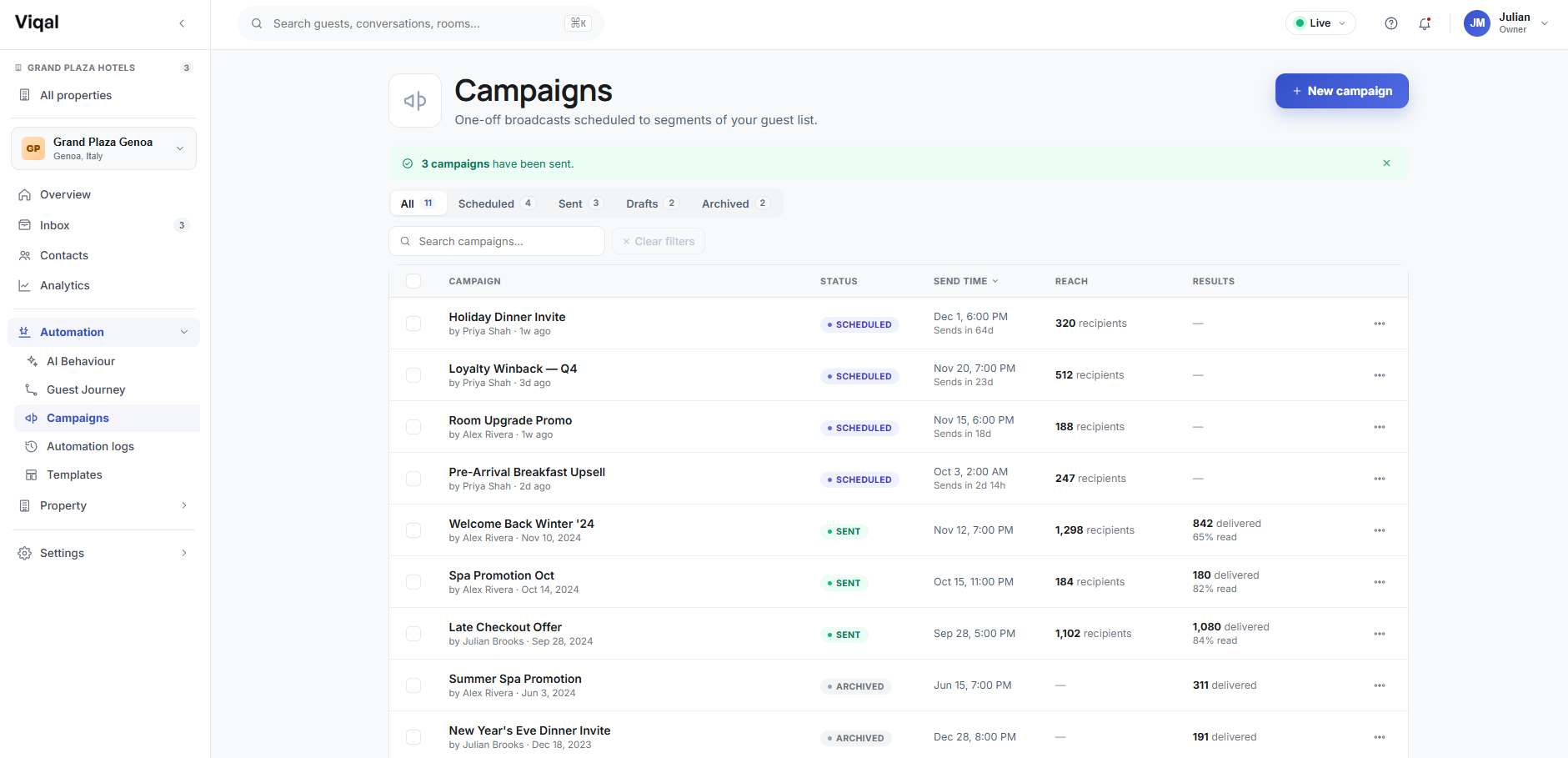
The Campaigns page lists everything you've created, grouped into All, Scheduled, Sent, Drafts and Archived, with search and summary counts. What you can do with a campaign depends on its status:
Draft — Edit · Duplicate · Delete
Scheduled — Edit · Pause · Duplicate · Delete
Sending — Pause · Duplicate · Delete
Paused — Edit · Activate · Duplicate · Delete
Sent — Duplicate · Delete
Failed — Edit · Duplicate · Delete
Archived — Duplicate · Delete
Was this helpful?
Still need help? Ask the team