Managing a template
The template detail view — overview, preview, versions, performance, where it's used.
Written By Bram Haenraets
Last updated 4 months ago
Clicking a template opens its detail view — where you see how it's built, how it's performing, where it's used, and manage its versions. It's the home for an existing template, as opposed to creating a new one.
Overview
The top of the detail view summarises the template: its format, category (Utility, Marketing or Authentication), channel, language, created and approved dates, the current version, and any triggers.
Preview and content breakdown
A live preview shows the message as a guest sees it — toggle between WhatsApp and SMS, and use Show translations to view the other languages. Below, the full content breakdown lists every part of the message: header, body, footer, buttons and the variables it uses.
Versions
Templates are versioned (v1, v2, v3…). Selecting New version creates a new, editable copy — but the current approved version stays live and keeps sending until the new one is approved by WhatsApp. In other words, editing an approved template means creating a new version that needs re-approval; guests keep getting the live version until then. Older versions appear as Archived in Version history.
Performance
See how the template is doing — Sent, Delivered, Read and Replied — with a toggle for the last 24 hours, 7 days or 30 days.
Used in
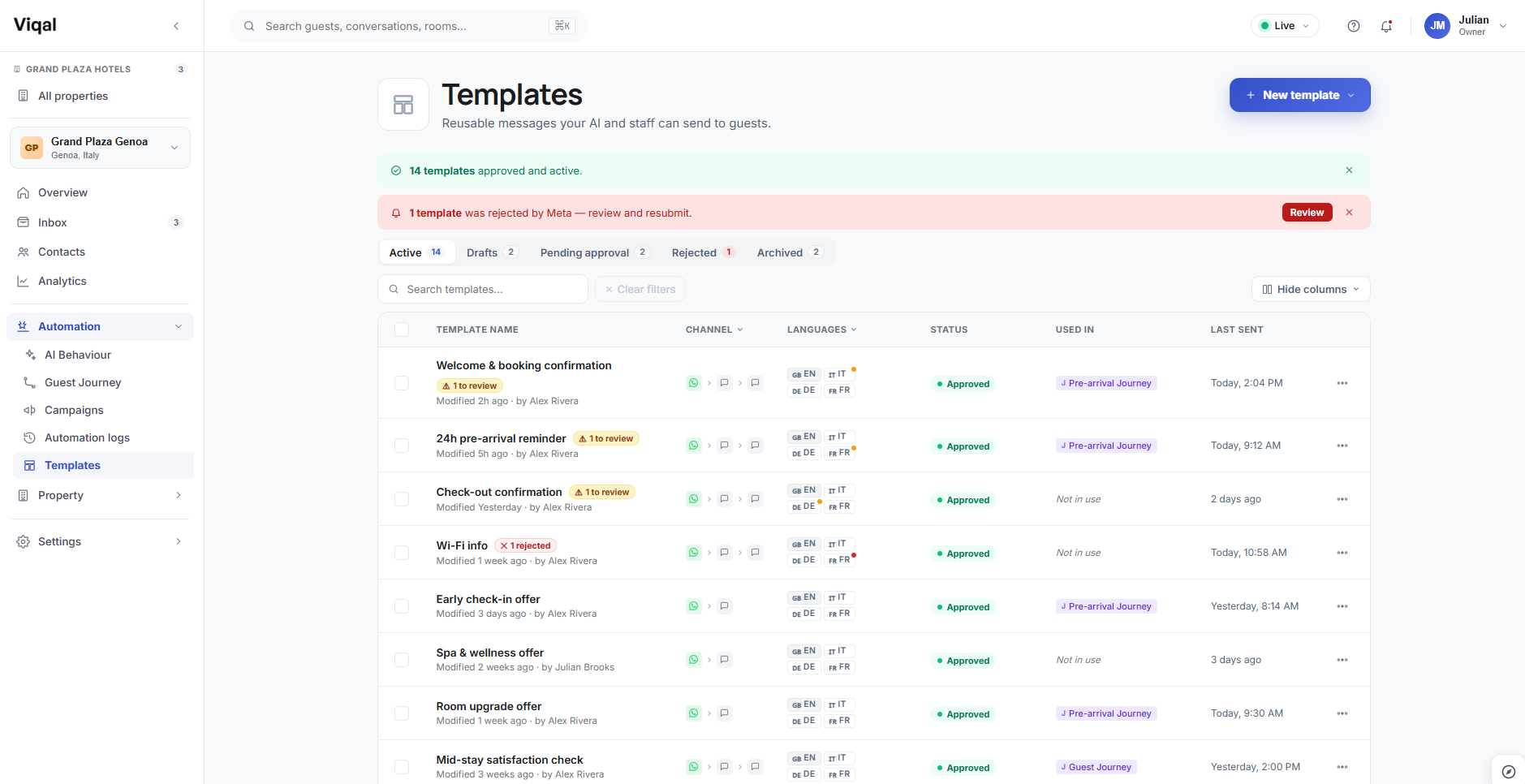
Used in shows which Guest Journeys and campaigns reference this template, with links to open them. A template marked Not in use isn't referenced anywhere — worth checking before you edit or archive one.
Use in Guest Journey
The Use in Guest Journey button adds the template straight into a journey from the detail view, without opening the journey builder first.
[VERIFY-AT-FREEZE: confirm exact button labels and panel names in V1.]
For what each approval status means and why Meta may reject a template, see Template approval and why Meta rejects templates. To edit a template's content, see Templates.
Was this helpful?
Still need help? Ask the team